
This is an old revision of the document!
Table of Contents
Contents
Checking a SSL Certificate
Prerequisite
To query certificates the openssl package has to be installed:
openssl version –a
View the Full Certificate Details
To check the details of a particular certificate, run the following command. This OpenSSL command shows certificate expiry, subject, issuer, key details, and signature algorithm.
openssl x509 -in mail.oscardegroot.nl.cer -text -noout
View the SSL Certificate Itself (Encoded)
OpenSSL allows you to view the SSL certificate in its original encoded format. Run the command below to display it:
$ echo | openssl s_client -servername google.com -connect www.google.com:443 2>/dev/null | openssl x509
--------------------------------------------------------------
-----BEGIN CERTIFICATE-----
MIIOPDCCDSSgAwIBAgIQeJqX0U5Tc7gJCu11qI55eTANBgkqhkiG9w0BAQsFADBG
MQswCQYDVQQGEwJVUzEiMCAGA1UEChMZR29vZ2xlIFRydXN0IFNlcnZpY2VzIExM
QzETMBEGA1UEAxMKR1RTIENBIDFDMzAeFw0yMzA4MDcxMjE2NDBaFw0yMzEwMzAx
......
hwJIJt0p+v/KtBb7R+9YWcK4kaW7ColdWx3pIneTZse0o+42x8HshHLwhNma5u6M
rXZNfOQmwIeD7gdNYyfdrJ78tJDZU7eJjhyYmsSD1SgHPwSefW3ZjOEaRdGhS2QU
-----END CERTIFICATE-----
Check SSL Certificate Validity
It’s important to know when the SSL certificate expires, so you can renew it in advance and avoid potential website outages and data breaches. Here’s how to check the SSL certificate expiration date in Linux:
$ echo | openssl s_client -servername oscardegroot.nl -connect www.oscardegroot.nl:443 2>/dev/null | openssl x509 -noout -dates
--------------------------------------------------------------
notBefore=Jul  1 00:56:57 2023 GMT
notAfter=Sep 29 00:56:56 2023 GMT
Debian Networking
On a typical Debian-based distribution, you have three major packages available for that purpose:
- ifupdown (daemon: networking)
- NetworkManager
- systemd (daemon: systemd-networkd)
In general, you should choose one and stick to it, even if ifupdown works well with NetworkManager it can still creates unexpected configuration issues.
ifupdown
Quite deprecated but reliable, you might encounter it on many older systems. The config is stored in /etc/network/interfaces and managed by the networking.service daemon which is a wrapper around the ifup and ifdown commands which are also wrappers themselves around ifconfig (or ip for ifupdown2).
NetworkManager
Usually included with desktop distributions since many graphical front-ends are available, the config is stored in /etc/NetworkManager and managed by the NetworkManager.service daemon.
You can manage the config with the included nmcli or nmtui utilities.
systemd-networkd
Usually used on server distributions and the official successor to ifupdown as it is included within systemd, the config is stored in /etc/systemd/network and managed by the** systemd-networkd.service** daemon.
dhclient
Although not a daemon, dhclient from isc-dhcp-client is nonetheless a very important package and often required on desktop distributions as you often need to obtain a IPv4 from a DHCP server.
Hopefully, as IPv6 (which uses SLAAC) is slowly being adopted, this will probably change in a near or distant future.
Default Gateway
Find current setting
IPv4
Find Default Gateway in Linux using following options:
$ ip route show
---------------
default via 192.168.1.1 dev eth1  proto static
192.168.1.0/24 dev eth1  proto kernel  scope link  src 192.168.1.100  metric 1
Alternative option using route:
$ route -n
----------
Kernel IP routing table
Destination     Gateway         Genmask         Flags Metric Ref    Use Iface
0.0.0.0         192.168.1.1     0.0.0.0         UG    0      0        0 eth1
192.168.1.0     0.0.0.0         255.255.255.0   U     1      0        0 eth1
The above output shows my default gateway is 192.168.1.1. UG stands for the network link is Up and G stands for Gateway.
IPv6
Find Default Gateway in Linux using following options:
$ ip -6 route show
2001:1c00:2e16:720a::806 dev enp1s0 proto kernel metric 100 pref medium
2001:1c00:2e16:720a::/64 dev enp1s0 proto ra metric 100 pref medium
fdaa:66:67:a::806 dev enp1s0 proto kernel metric 100 pref medium
fdaa:66:67:a::/64 dev enp1s0 proto ra metric 100 pref medium
fe80::/64 dev enp1s0 proto kernel metric 1024 pref medium
default via fe80::ee08:6bff:fe84:2043 dev enp1s0 proto ra metric 100 pref medium
Setting Default Gateway
IPv4
In case of DHCP the gateway is communicated via the DHCP options. Here is the list of the most common DHCP options exchanged with clients:
- DHCP option 1: subnet mask to be applied on the interface asking for an IP address
- DHCP option 3: default router or last resort gateway for this interface
- DHCP option 6: which DNS (Domain Name Server)
In case of manual configuration the gateway is specified in the /etc/network/interfaces file:
cat /etc/network/interfaces
---------------------------
auto lo
iface lo inet loopback

auto eth0
iface eth0 inet static
address 192.168.1.100
netmask 255.255.255.0
network 192.168.1.0
broadcast 192.168.1.255
gateway 192.168.1.1
IPv6
IPv6 works very differently from IPv4 when it comes to gateways. With IPv4, you need to specify a gateway manually or via a DHCP option. With IPv6, the IP stack locates gateways automatically by using ICMP-v6 Neighbor Discovery packets. Specifically, a client will listen for Router Advertisements, which may be sent gratuitously by a router or as a response to a Router Solicitation package. In addition to that a default route can be set with:
# ip -6 route add default via xx:xx:xx::xx dev eth0
Domain Name Server (DNS)
Unbound vs Dnsmasq
We use two different local DNS servers on various systems: Unbound and Dnsmasq. Unbound, like Bind is a full DNS resolver which can talk directly to the DNS root servers. Dnsmasq is only a forwarder, it will ask your nearest DNS (mostly the ISP's servers or Google). Thus, a forwarders answers are an implicit trust in the DNS server chain that you are using. It's in that sense less secure that it may not return what the root servers would return. In the worst case that is an attack or unwanted advertising.
Querying DNS services
Using dig command you can query DNS name servers for your DNS lookup related tasks. Dig stands for domain information groper.
Simple query
Standard query using the default DNS server configured on your system
# dig oscardegroot.nl
------------------------
; <<>> DiG 9.11.5-P4-5.1+deb10u3-Debian <<>> oscardegroot.nl
;; global options: +cmd
;; Got answer:
;; ->>HEADER<<- opcode: QUERY, status: NOERROR, id: 58194
;; flags: qr rd ra ad; QUERY: 1, ANSWER: 1, AUTHORITY: 0, ADDITIONAL: 1

;; OPT PSEUDOSECTION:
; EDNS: version: 0, flags:; udp: 4096
;; QUESTION SECTION:
;oscardegroot.nl.               IN      A

;; ANSWER SECTION:
oscardegroot.nl.        13636   IN      A       83.86.60.198

;; Query time: 0 msec
;; SERVER: 127.0.0.1#53(127.0.0.1)
;; WHEN: wo mrt 24 13:06:00 CET 2021
;; MSG SIZE  rcvd: 60
The dig command output has the following sections:
- Header: This displays the dig command version number, the global options used by the dig command, and few additional header information.
- QUESTION SECTION: This displays the question it asked the DNS. i.e This is your input. Since we said ‘dig redhat.com’, and the default type dig command uses is A record, it indicates in this section that we asked for the A record of the redhat.com website
- ANSWER SECTION: This displays the answer it receives from the DNS. i.e This is your output. This displays the A record of redhat.com
- AUTHORITY SECTION: This displays the DNS name server that has the authority to respond to this query. Basically this displays available name servers of redhat.com
- ADDITIONAL SECTION: This displays the ip address of the name servers listed in the AUTHORITY SECTION.
- Stats section at the bottom displays few dig command statistics including how much time it took to execute this query
Use specific DNS server
By default dig uses the DNS servers defined in your /etc/resolv.conf file. If you like to use a different DNS server to perform the query, specify it in the command line as @dnsserver. For example use directly the name server of TransIP (ns0.transip.net):
dig +short TXT @ns0.transip.net. oscardegroot.nl
Short Output Using dig +short
To view just the ip-address of a web site (i.e the A record), use the short form option as shown below.
dig oscardegroot.nl +short
------------------------------------
83.86.60.198
Limit output to specific section
The response can be limited to any of the sections. E.g. the next only displays the ANSWER SECTION.
# dig oscardegroot.nl +noall +answer
-----------------------------------
; <<>> DiG 9.11.5-P4-5.1+deb10u3-Debian <<>> oscardegroot.nl +noall +answer
;; global options: +cmd
oscardegroot.nl.        13296   IN      A       83.86.60.198
Query Record types
With the -t option you can select a specific record type. This is one of: a, any, mx, ns, soa, hinfo, axfr, txt. The default is: a. Be aware that not all DNS servers have copies of all the records locally. So if this query return incomplete info, use a different DNS server.
# dig @192.168.178.1 oscardegroot.nl -t any +noall +answer
----------------------------------------------------------
; <<>> DiG 9.11.5-P4-5.1+deb10u3-Debian <<>> @192.168.178.1 oscardegroot.nl -t any +noall +answer
; (1 server found)
;; global options: +cmd
oscardegroot.nl.        86400   IN      TXT     "v=spf1 ip4:212.54.42.1/24 ~all"
oscardegroot.nl.        86400   IN      MX      10 oscardegroot.nl.
oscardegroot.nl.        86400   IN      NS      ns2.transip.eu.
oscardegroot.nl.        300     IN      NSEC3PARAM 1 0 100 7A6F6BE2671ACE93
oscardegroot.nl.        86400   IN      NS      ns1.transip.nl.
oscardegroot.nl.        300     IN      DNSKEY  257 3 7 AwEAAc4RYjNmnUu20xeaWUFNXTKF7NyceaAnUf6XSAnCWHOtNjfYCq1a /rWQx9ewKUHZsZyzLyzW  cBDwJfVHoq0pLKXOYzgTmHcgubGAquspVVKW 5XEVK3wN1Tmn1suO8r9fo5B3d0vFsWlZLgAEfylieUL/doTIK4ZLez4O YgEvRFPGHwjaWoTyCvCYV2jTn1qfZF4Q90Opo/p  x/RX7enfzf2kDcsPV BWh13ghrLBdIgcflb+2JxPw9bQ8Cfmej9P5bLQsbO7sPQv/ieNChZ47V SnkP+Pk9o6ucXNGrk7cWwx+ZP3UGx6TuQuL7CZ91gDfvdotVU1fOl+hY D  HmNMpJC7qU=
oscardegroot.nl.        300     IN      DNSKEY  256 3 7 AwEAAcVuFjB7HrAoM+qnuNb532dvTnX3Wg29wnnWIN0hlf4NAi27Z67D WS6JbratSwuZ0ga32nQ1  6ruMh6bbDOBqrKLb/Qmp71ZLjvNP+ih7dz9G nmqfWbSiW+mMg7H9cX0JV4+ihqw7EFxTRwyu5foJ01Il6EVr+nIKJtQM hYoorhDz
oscardegroot.nl.        86400   IN      A       83.86.60.198
oscardegroot.nl.        3600    IN      SOA     ns0.transip.net. hostmaster.transip.nl. 2021031313 86400 1800 2419200 300
oscardegroot.nl.        86400   IN      NS      ns0.transip.net.
oscardegroot.nl.        86400   IN      RRSIG   A 7 2 86400 20210401000000 20210311000000 18644 oscardegroot.nl. scZnWng3OLaF95T8xQmB  N53oNKMCAM/c2qqViw4vvR1jx+p1XSgULMmP xhZaxQJrKNgj3NTiQ/hUPnffxigp4Ak017+gzNwTBTSZ2YpuGEgxqSiX ouRmLrkiZo+hiL8Cfx+1mKgq9pG1TIl6CTOY1lD  onjYW7i8Hiz04oKP9 xXg=
oscardegroot.nl.        86400   IN      RRSIG   NS 7 2 86400 20210401000000 20210311000000 18644 oscardegroot.nl. qrhwgyekbLJzHDl2bDf  oPX8BKABVxF1j7Z37CmOFxdDCJnIgj5WWnBKn QJ/1hFgaSu4lHQ5AGaJ/H5C2rdijq+9iPeMTaieds10HUwFJHViGtb67 TOA5C7oXQVmysYnGerZ9XlOtvzBp/KJBjZFaYu  QddDxzCeRh46nn9Sm4 IG0=
oscardegroot.nl.        3600    IN      RRSIG   SOA 7 2 3600 20210401000000 20210311000000 18644 oscardegroot.nl. g11Ywidy/uu8RsfbM2r  rqUeVnTD8pJnnaL3SBFAgiRHgvCGFvnyTz8jn 4wkZdEpJL4eznJ72dZ+uvxAfhF1lTq+h4L8vIFjFRcIR1noQwlpyHBJu 4XypHmmiV+UplSnjCGf6Uz4u89GYuj+Gporeie  lfniXH+amPGBC2WkXj tGY=
oscardegroot.nl.        86400   IN      RRSIG   MX 7 2 86400 20210401000000 20210311000000 18644 oscardegroot.nl. w+HSrmvU9sKuDo/nVI8  EA/DkYRXUyG1d0q1ConEmqgGVI7H20aceMgtY BeL204z1FfOr1yiDLJAit6W5W+U6mrH5ULpWv9xugM8qhUxtF/d6YPtk 4aJChyxSIGDa1pTdUoTx3XuEx0PVHDfopoNeF5  PZIHnMtDJkOLHT2l64 s4E=
oscardegroot.nl.        86400   IN      RRSIG   TXT 7 2 86400 20210401000000 20210311000000 18644 oscardegroot.nl. rQr5aZWPoDZub9Tm8Z  gnBXfwoJjJ54FyjlUPqQy+h3/PV5Yp/rlBaU+k jgNnxN6ovnG6KV5b9994JTZpQRpdguv4MayDK9lQbd8NeO990FU6mXD4 V7Klo6vILRDNBMcTcaeiS49mWq/vyxIRaOnXs  s26bfvjfh6BLovzMPPC Avc=
oscardegroot.nl.        300     IN      RRSIG   DNSKEY 7 2 300 20210401000000 20210311000000 55374 oscardegroot.nl. JNRayjaaztppv35i+  uHbY587OTwMp4EW9ShHAJB9avz69pCXWAI69NFv 3O42TPId1vujND7RuDWiGKAn6vVXBzSe27bKcWbXGKGulQT24qsZKgNR XVzjeOGxGD7bkhqx6VkMoy0qQLANjf3I2nyU  TziW1BGuvFiFXM53K8iC ic43oP+wo/oopyy2HHAji1DBm9Y1CARA8Bm0YxVpXoJAF5M24kx5JtzF DNImag+4U02LM96PqNFtgntXRGNbejOjjA1XQ75zJyyHhUgRiK1G7aL  0 B/As0SRzFXIUftbAdtYaTD60rc1OFEAjcfdem6aPckwqDcynR7TQJUWa huWgcA==
oscardegroot.nl.        300     IN      RRSIG   NSEC3PARAM 7 2 300 20210401000000 20210311000000 18644 oscardegroot.nl. acpYiIwzeUyrL  AsXeTYejnwOmFaDzW6ArA+OZUMbUZrQB9N/Mb5TB03I 8tUSa3wowD/noOepnAbE3A0Q+/gfsDNxZ4wuYmaPRPQ96OD9GJSJbhcS 5Bbd+QX0UOMKvRyEAQWPmbyXcOyLxx6a  3xgIjboeecAfb3oFZiPUdHT+ RyM=
DNS Reverse Look-up
To perform a DNS reverse look up using the ip-address using dig -x as shown below. For example, if you just have an external ip-address and would like to know the website that belongs to it, do the following.
# dig -x 209.132.183.81 +short
www.redhat.com.
or
nslookup 209.132.183.81
81.183.132.209.in-addr.arpa	name = www.redhat.com.
Monitor DNS requests
tcpdump -i wlan0 -n -s 0 port 53 | grep fdxx:xxx:xxxx:xxxx:xxxx:xxxx:xxx:xx
script -q -c "sudo tcpdump -l port 53 2>/dev/null | grep --line-buffered ' A? ' | cut -d' ' -f8" | tee dns.log
IPTables
Introduction
Iptables filters packets based on:
- Tables: Tables are files that join similar actions. A table consists of several chains.
- Chains: A chain is a string of rules. When a packet is received, iptables finds the appropriate table, then runs it through the chain of rules until it finds a match.
- Rules: A rule is a statement that tells the system what to do with a packet. Rules can block one type of packet, or forward another type of packet. The outcome, where a packet is sent, is called a target.
- Targets: A target is a decision of what to do with a packet. Typically, this is to accept it, drop it, or reject it (which sends an error back to the sender).
Tables
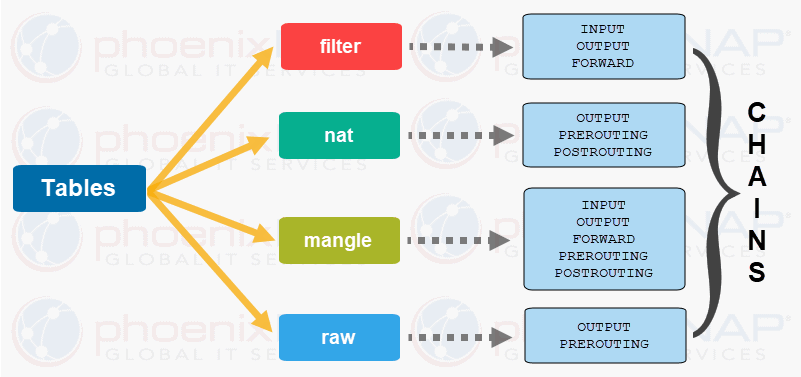
Tables allow you to do very specific things with packets. There are four tables:
- Filter table: Is the default and most widely used table. It is used to make decisions about whether a packet should be allowed to reach its destination.
- Mangle table: Allows you to alter packet headers in various ways, such as changing TTL values.
- NAT table: Allows you to route packets to different hosts on NAT (Network Address Translation) networks by changing the source and destination addresses of packets. It is often used to allow access to services that can’t be accessed directly, because they’re on a NAT network.
- RAW table: iptables is a stateful firewall, which means that packets are inspected with respect to their “state”. (For example, a packet could be part of a new connection, or it could be part of an existing connection.) The raw table allows you to work with packets before the kernel starts tracking its state. In addition, you can also exempt certain packets from the state-tracking machinery.
Chains
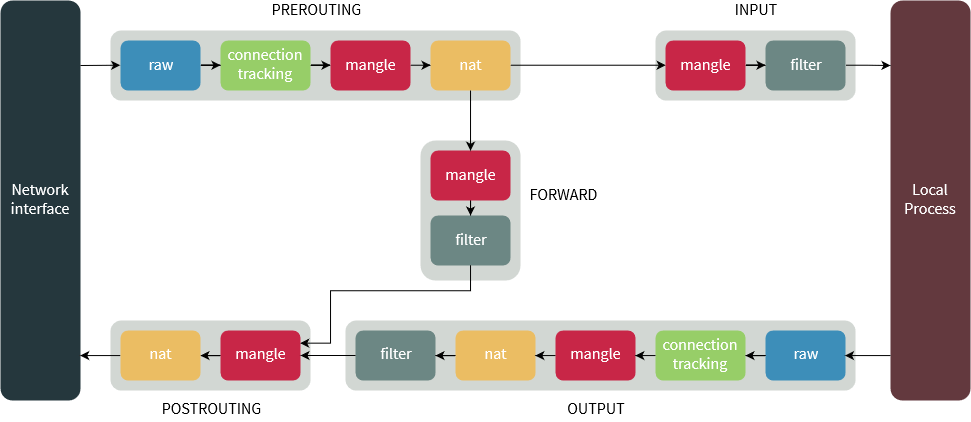
Each of these tables are composed of a few default chains. These chains allow you to filter packets at various points. The list of chains iptables provides are:
- PREROUTING chain: Rules in this chain apply to packets as they just arrive on the network interface. This chain is present in the nat, mangle and raw tables.
- INPUT chain: Is used to control the behavior for incoming connections. For example, if a user attempts to SSH into your PC/server, iptables will attempt to match the IP address and port to a rule in the input chain. Rules in this chain apply to packets just before they’re given to a local process. This chain is present in the mangle and filter tables.
- OUTPUT chain: The rules here apply to packets just after they’ve been produced by a process. This chain is present in the raw, mangle, nat and filter tables. It is used for outgoing connections. For example, if you try to ping howtogeek.com, iptables will check its output chain to see what the rules are regarding ping and howtogeek.com before making a decision to allow or deny the connection attempt. Even though pinging an external host seems like something that would only need to traverse the output chain, keep in mind that to return the data, the input chain will be used as well. When using iptables to lock down your system, remember that a lot of protocols will require two-way communication, so both the input and output chains will need to be configured properly. SSH is a common protocol that people forget to allow on both chains.
- FORWARD chain: Is used for incoming connections that aren’t actually being delivered locally. Think of a router – data is always being sent to it but rarely actually destined for the router itself; the data is just forwarded to its target. Unless you’re doing some kind of routing, NATing, or something else on your system that requires forwarding, you won’t even use this chain. The rules here apply to any packets that are routed through the current host. This chain is only present in the mangle and filter tables.
- POSTROUTING chain: The rules in this chain apply to packets as they just leave the network interface. This chain is present in the nat and mangle tables.
The diagram below shows the flow of packets through the chains in various tables:
Targets
Chains allow filtering traffic by adding rules to them. So for example, you could add a rule on the filter table’s INPUT chain to match traffic on port 22. But what would you do after matching them? That’s what targets are for — they decide the fate of a packet.
Some targets are terminating, which means that they decide the matched packet’s fate immediately. The packet won’t be matched against any other rules. The most commonly used terminating targets are:
- ACCEPT: Allow the connection. iptables will accept the packet.
- DROP: Drop the connection, act like it never happened. This is best if you don’t want the source to realize your system exists.
- REJECT: iptables “rejects” the packet. It sends a “connection reset” packet in case of TCP, or a “destination host unreachable” packet in case of UDP or ICMP.
There are also non-terminating targets, which keep matching other rules even if a match was found. An example of this is the built-in LOG target. When a matching packet is received, it logs about it in the kernel logs. However, iptables keeps matching it with rest of the rules too.
Show current chains
To see what your policy chains are currently configured to do with unmatched traffic, run the iptables -L command.
# iptables -L -v
----------------------------------------
Chain INPUT (policy ACCEPT 0 packets, 0 bytes)
 pkts bytes target     prot opt in     out     source               destination

Chain FORWARD (policy ACCEPT 0 packets, 0 bytes)
 pkts bytes target     prot opt in     out     source               destination

Chain OUTPUT (policy ACCEPT 0 packets, 0 bytes)
 pkts bytes target     prot opt in     out     source               destination
Unless preceded by the option -t, an iptables command concerns the filter table by default.
# iptables -t filter -L -v
# iptables -t nat -L -v
Before going in and configuring specific rules, you’ll want to decide what you want the default behavior of the three chains to be. In other words, what do you want iptables to do if the connection doesn’t match any existing rules? To see what your policy chains are currently configured to do with unmatched traffic, run the iptables -L command.
 # iptables -L | grep policy

Chain INPUT (policy ACCEPT)
Chain FORWARD (policy ACCEPT)
Chain OUTPUT (policy ACCEPT)
Policy Chain Default Behavior
Here is the command to accept connections by default:
iptables --policy INPUT ACCEPT
iptables --policy OUTPUT ACCEPT
iptables --policy FORWARD ACCEPT
If you would rather deny all connections and manually specify which only explicit ones you want to allow to connect:
iptables --policy INPUT DROP
iptables --policy OUTPUT DROP
iptables --policy FORWARD DROP
Connection-specific Responses
We can configure iptables to allow or block specific addresses, address ranges, and ports. In the following examples, we’ll set the connections to DROP, but you can switch them to ACCEPT or REJECT, depending on your needs and how you configured your policy chains.
Notes:
- iptables -A appends rules to the existing chain. iptables starts at the top of its list and goes through each rule until it finds one that it matches. If you need to insert a rule above another, you can use iptables -I [chain] [number] to specify the number it should be in the list.
- Adding rules to the INPUT chain of the filter table can be done with: iptables -t filter -A INPUT -s 59.45.175.62 -j REJECT. The -t switch specifies the table in which our rule would go into. Since the filter table is used by default, we can leave it out, which saves you some typing: iptables -A INPUT -s 59.45.175.62 -j REJECT
Inserting Rules
Connections from a single IP address
This example shows how to block all connections from the IP address 10.10.10.10.
iptables -A INPUT -s 10.10.10.10 -j DROP
Connections from a range of IP addresses
This example shows how to block all of the IP addresses in the 10.10.10.0/24 network range. You can use a netmask or standard slash notation to specify the range of IP addresses.
iptables -A INPUT -s 10.10.10.0/24 -j DROP
or
iptables -A INPUT -s 10.10.10.0/255.255.255.0 -j DROP
Connections to a specific port
This example shows how to block SSH connections from 10.10.10.10.
iptables -A INPUT -p tcp --dport ssh -s 10.10.10.10 -j DROP
You can replace “ssh” with any protocol or port number. The -p tcp part of the code tells iptables what kind of connection the protocol uses. If you were blocking a protocol that uses UDP rather than TCP, then -p udp would be necessary instead. This example shows how to block SSH connections from any IP address.
iptables -A INPUT -p tcp --dport ssh -j DROP
Deleting rules
Now, say you’ve blocked the IP range 221.194.47.0/24 by mistake. Removing it is easy: simply replace -A with -D, which deletes a rule:
iptables -D INPUT -s 221.194.47.0/24 -j REJECT
You can also delete rules through their line numbers. If you want to delete the second rule from the INPUT chain, the command would be:
iptables -D INPUT 2
When you delete a rule that isn’t the last rule, the line numbers change, so you might end up deleting the wrong rules! So, if you’re deleting a bunch of rules, you should first delete the ones with the highest line numbers. If you were deleting the 9th and 12th rules from the INPUT chain, you would run:
iptables -D INPUT 12
iptables -D INPUT 9
Sometimes, you may need to remove all rules in a particular chain. Deleting them one by one isn’t practical, so there’s the -F switch which “flushes” a chain. For example, if you want to flush the filter table’s INPUT chain, you would run:
iptables -F INPUT
Inserting and replacing rules
You can also insert rules at a given position! This is useful in a number of cases. We’ll use the previous example in the Listing rules section. While you’re seeing attacks from 59.45.175.0/24, assume that you need to whitelist 59.45.175.10. Since iptables evaluates rules in the chains one-by-one, you simply need to add a rule to “accept” traffic from this IP above the rule blocking 59.45.175.0/24. So, if you run the command:
iptables -I INPUT 1 -s 59.45.175.10 -j ACCEPT
This rule is inserted at the first line, and it makes the rule blocking 59.45.175.0/24 come to the second line. You can verify this by listing the rules:
Chain INPUT (policy ACCEPT)
num target prot opt source destination
1 ACCEPT all -- 59.45.175.10 0.0.0.0/0
2 DROP all -- 59.45.175.0/24 0.0.0.0/0
3 DROP all -- 221.192.0.0/20 0.0.0.0/0
4 DROP all -- 91.197.232.104/29 0.0.0.0/0
You can also replace rules with the -R switch. As an example, perhaps you whitelisted the wrong IP, and typed in 59.45.175.12 instead of 59.45.175.10. Since the new rule is on the first line, you can replace it with the correct rule like so:
iptables -R INPUT 1 -s 59.45.175.10 -j ACCEPT
Enable Loopback Traffic
It’s safe to allow traffic from your own system (the localhost). Append the Input chain by entering the following:
sudo iptables –A INPUT –i lo –j ACCEPT
This command configures the firewall to accept traffic for the localhost (lo) interface (-i). Now anything originating from your system will pass through your firewall. You need to set this rule to allow applications to talk to the localhost interface.
Custom chains
You may need to do some complex processing on the same packet over and over. For example, say you want to allow SSH access just for a couple of IP ranges:
iptables -A INPUT -p tcp -m tcp --dport 22 -s 18.130.0.0/16 -j ACCEPT
iptables -A INPUT -p tcp -m tcp --dport 22 -s 18.11.0.0/16 -j ACCEPT
iptables -A INPUT -p tcp -m tcp --dport 22 -j DROP
This is inefficient. A better way to organize these rules would be to use custom chains. First, you need to make a custom chain. We’ll name ours ssh-rules:
iptables -N ssh-rules
Then, you can add the rules for the IPs in the new chain. Of course, we aren’t limited to matching IPs — you can do just about anything here. However, since custom chains don’t have a default policy, make sure you end up doing something to the packet. Here, we’ve added a last line that drops everything else. There’s also the RETURN target, which allows you to return to the parent chain and match the other rules there — it’s similar to a non-terminating target.
iptables -A ssh-rules -s 18.130.0.0/16 -j ACCEPT
iptables -A ssh-rules -s 18.11.0.0/16 -j ACCEPT
iptables -A ssh-rules -j DROP
Now, you should put a rule in the INPUT chain that refers to it:
iptables -A INPUT -p tcp -m tcp --dport 22 -j ssh-rules
Using a custom chain carries many advantages. For example, you can entirely manage this chain through a script, and you don’t have to worry about interfering with the rest of the chain.
If you want to delete this chain, you should first delete any rules that reference to it. Then, you can remove the chain with:
iptables -X ssh-rules
Connection States
A lot of protocols are going to require two-way communication. For example, if you want to allow SSH connections to your system, the input and output chains are going to need a rule added to them. But, what if you only want SSH coming into your system to be allowed? Won’t adding a rule to the output chain also allow outgoing SSH attempts?
That’s where connection states come in, which give you the capability you’d need to allow two way communication but only allow one way connections to be established. Take a look at this example, where SSH connections FROM 10.10.10.10 are permitted, but SSH connections TO 10.10.10.10 are not. However, the system is permitted to send back information over SSH as long as the session has already been established, which makes SSH communication possible between these two hosts.
iptables -A INPUT -p tcp –dport ssh -s 10.10.10.10 -m state –state NEW,ESTABLISHED -j ACCEPT iptables -A OUTPUT -p tcp –sport 22 -d 10.10.10.10 -m state –state ESTABLISHED -j ACCEPT
Saving Changes
The changes that you make to your iptables rules will be scrapped the next time that the iptables service gets restarted unless you execute a command to save the changes. This command can differ depending on your distribution:
sudo /sbin/iptables-save
Reset iptables firewall
To clear all the currently configured rules, you can issue the flush command (iptables -F).
iptables -P INPUT ACCEPT
iptables -P FORWARD ACCEPT
iptables -P OUTPUT ACCEPT
iptables -t nat -F
iptables -t mangle -F
iptables -F
iptables -X
Installation
Iptables is a command-line firewall utility that uses policy chains to allow or block traffic. When a connection tries to establish itself on your system, iptables looks for a rule in its list to match it to. If it doesn’t find one, it resorts to the default action. iptables almost always comes pre-installed on any Linux distribution. To update/install it, just retrieve the iptables package:
sudo apt-get install iptables
If you want to keep iptables firewall rules when you reboot the system, then install the persistent package:
sudo apt-get install iptables-persistent
IPv6
IPv6 Notation
IPv6 addresses are 128 bits long (32 hexadecimal numbers) and consist of eight colon-delimited sections. Each section contains 2 bytes, and each byte is expressed as a hexadecimal number from 0 through FF. An IPv6 address looks like this: 2001:0db8:0000:0000:0000:0800:200c:7334. By omitting the leading zeroes from each section or substituting contiguous sections that contain zeroes with a double colon, you can write the example address as:2001:db8::800:200c:7334.
Subnetting
An IPv6 address can be broken into a network address space and the nodes address space. The prefix length is a decimal value that specifies the number of the leftmost bits in the address that make up the prefix. The prefix length follows a forward slash and, identifies the portion of the address owned by an organization. All remaining bits (up to the right-most bit) represent individual nodes or interfaces. For example, 2001:db8:0000:0000:250:af:34ff:fe26/64 has a prefix length of 64. The first 64 bits of this address (2001:db8:0000:0000) are the prefix. The rest (250:af:34ff:fe26) identify the interface.
IETF defined /64 to be the standard IPv6 subnet size. It is smallest subnet that can used locally if auto configuration is desired. Typically, an ISP assigns a /64 or smaller subnet to establish service on the WAN. An additional network is routed for LAN use.
| bits (MSB) | Purpose |
|---|---|
| First 48 bits: | Network address |
| Next 16 bits: | Subnet address |
| Last 64 bits: | Device address |
Prefix
The default IPV6 prefix is 64-bit and consists on the network an subnet parts.
Network+Subnet = Prefix
The following address 2003:1000:1000:1600:1234::1 would have the network 2003:1000:1000, the subnet 1600, so together the prefix 2003:1000:1000:1600. If the ISP provider delegated a part of the prefix to me (e.g. 2003:1000:1000:1600/56) then I could use the subnets from 2003:1000:1000:1600 to 2003:1000:1000:16FF for my own purposes (i.e. define 256 subnets in this example)
Ziggo provides a Prefix Delegated of 56-bits: 2001:1c00:2e16:7200::/56.This means that Ziggo provides you /56 IPv6 address range. This allows you to create 256 subnets each being /64 large.
Scopes
- GLOBAL - everything (i.e. the whole internet)
- UNIQUE LOCAL - everything in our LAN (behind the internet gateway)
- LINK LOCAL - (will never be routed, valid in one collision domain, i.e. on the same switch)
| range | Purpose |
|---|---|
| ::1/128 | Loopback address (localhost) |
| ::/128 | unspecified address |
| 2000::/3 | GLOBAL unicast (Internet) |
| fc00::/7 | Unique-local (LAN) |
| fe80::/10 | Link-Local Unicast (same switch) |
Always use the smallest possible scope for communication A host can have multiple addresses in different scopes
IPv6 Address Types
Unicast
| Prefix | Type | Explanation | IPv4 equivalent |
|---|---|---|---|
| fc00::/7 | Unique Local Addresses (ULAs) | Example: fdf8:f53b:82e4::53 These addresses are reserved for local use in home and enterprise environments and are not public address space. Packets with these addresses in the source or destination fields are not intended to be routed on public Internet. | Private, or RFC 1918 address space: 10.0.0.0/8 172.16.0.0/12 192.168.0.0/16 |
| fe80::/10 | Link-Local Addresses | Example: fe80::200:5aee:feaa:20a2 These addresses are used on a single link or a non-routed common access network, such as an Ethernet LAN. They do not need to be unique outside of that link. Link-local addresses may appear as the source or destination of an IPv6 packet. Routers must not forward IPv6 packets if the source or destination contains a link-local address. | 169.254.0.0/16 |
| 2000::/3 | Global Unicast | the operators of networks using these addresses can be found using the Whois servers of the RIRs listed in the registry at: http://www.iana.org/assignments/ipv6-unicast-address-assignments | No equivalent single block |
| ::/128 | Unspecified | This address may only be used as a source address by an initialising host before it has learned its own address. | 0.0.0.0 |
| ::1/128 | Loopback | This address is used when a host talks to itself over IPv6. This often happens when one program sends data to another. | 127.0.0.1 |
| ::ffff/96 | IPv4-Mapped | Example: ::ffff:192.0.2.47 These addresses are used to embed IPv4 addresses in an IPv6 address. One use for this is in a dual stack transition scenario where IPv4 addresses can be mapped into an IPv6 address. See RFC 4038 for more details. | There is no equivalent. However, the mapped IPv4 address can be looked up in the relevant RIR’s Whois database. |
Multicast
Multicast addresses support 16 different types of address scope, including node, link, site, organization, and global scope. A 4-bit field in the prefix identifies the address scope. The following types of multicast addresses can be used in an IPv6 subscriber access network:
- Solicited-node multicast address—Neighbor Solicitation (NS) messages are sent to this address.
- All-nodes multicast address—Router Advertisement (RA) messages are sent to this address.
- All-routers multicast address—Router Solicitation (RS) messages are sent to this address.
| Prefix | Explanation |
|---|---|
| ff02::1 | All nodes on the local network segment |
| ff02::2 | All routers on the local network segment |
| ff02::f | UPNP (Universal Plug and Play) devices |
| ff02::fb | multicast DNS IPv6 |
| ff02::101 | network time (NTP) |
| ff02::1:2 | All DHCPv6 servers and relay agents on the local network segment |
| ff05::1:3 | All DHCPv6 servers on the local network site |
| ff05::101 | all NTP server (site) |
Special
| Prefix | Type | Explanation | IPv4 equivalent |
|---|---|---|---|
| 2001:0000::/32 | Teredo IPv6 tunneling | Example: 2001:0000:4136:e378:8000:63bf:3fff:fdd2 This is a mapped address allowing IPv6 tunneling through IPv4 NATs. The address is formed using the Teredo prefix, the server’s unique IPv4 address, flags describing the type of NAT, the obfuscated client port and the client IPv4 address, which is probably a private address. It is possible to reverse the process and identify the IPv4 address of the relay server, which can then be looked up in the relevant RIR’s Whois database. | No equivalent |
| 2002::/16 | 6to4 | Example: 2002:cb0a:3cdd:1::1 A 6to4 gateway adds its IPv4 address to this 2002::/16, creating a unique /48 prefix. As the IPv4 address of the gateway router is used to compose the IPv6 prefix, it is possible to reverse the process and identify the IPv4 address, which can then be looked up in the relevant RIR’s Whois database. There is no equivalent but 192.88.99.0/24 has been reserved as the 6to4 relay anycast address prefix by the IETF. You can do this on the following webpage: http://www.potaroo.net/cgi-bin/ipv6addr | No equivalent |
Assign IPv6 address
Ways to assign IPv6 addresses:
- Static - fixed address
- SLAAC - Stateless Address Autoconfiguration (host generates itself)
- DHCPv6 - Dynamic host configuration protocol (assigned by central server)

SLAAC
Stateless Auto Address Configuration (SLAAC) enables hosts to create their own unique IPv6 global unicast address without the services of a DHCPv6 server that maintains network address information to know which IPv6 addresses are being used and which ones are available.
- SLAAC router sends periodic ICMPv6 RA Router Advertisement messages (i.e., every 200 seconds) providing addressing and other configuration information for hosts to auto configure their IPv6 address based on the information in the RA.
- SLAAC host configures it address using the Router Advertisement (RA) messages send by the router
- A host can also send a Router Solicitation (RS) message requesting an RA.
- SLAAC can be deployed as SLAAC only, or SLAAC with DHCPv6
DHCPv6
Stateful DHCPv6 does not require SLAAC while stateless DHCPv6 does. Regardless, when an RA indicates to use DHCPv6 or stateful DHCPv6:
- The host sends an RS message.
- The router responds with an RA message.
- The host sends a DHCPv6 SOLICIT message.
- The DHCPv6 server responds with an ADVERTISE message.
- The host responds to the DHCPv6 server.
- The DHCPv6 server sends a REPLY message.
Stateless DHCPv6 Operation
If an RA indicates the stateless DHCPv6 method:
- the host uses the information in the RA message for addressing and contacts a DHCPv6 server for additional information.
- Note: The DHCPv6 server only provides configuration parameters for clients and does not maintain a list of IPv6 address bindings (i.e. stateless).
Statefull DHCPv6 Operation
If an RA indicates the statefull DHCPv6 method:
- the host contacts a DHCPv6 server for all configuration information.
- Note: The DHCPv6 server is statefull and maintains a list of IPv6 address bindings
Troubleshooting
Show address
ip -6 address show
Default Route
ip -6 route show | grep default
Ping the host
ping6 fe80::ee08:6bff:fe84:2043
Network Discovery
ip -6 neigh show

fda1:a50c:1f31:a:291f:4bfe:8a4f:7cd8 dev enp1s0  STALE
fe80::ba27:ebff:fe1c:7fc0 dev enp1s0 STALE
2001:1c00:2e39:4ac::1 dev enp1s0  router STALE
* * *
* * *
2001:1c00:2c19:4ac:ba27:ebff:feff:7faa dev enp1s0  STALE
fda1:a50c:ca30:c::1 dev enp1s0  router STALE
2001:1c00:2e18:4ac:230:59ff:fe19:135d dev enp1s0  STALE
FAILED indicates that the system could not be reached. STALE indicates that the connection hasn't been recently verified.
Or use ping6:
ping6 -c3 -n -I enp1s0 ff02::1        --> lists all link local addresses
ping6 -c3 -n -I <your network interface 2001 ip> ff02::1     --> lists all global addresses
ping6 -c3 -n -I <your network interface fda1 ip> ff02::1     --> lists all local network addresses
IPv6 addresses in URIs/URLs
Because IPv6 address notation uses colons to separate hextets, it is necessary to encase the address in square brackets in URIs. For example http://[2a00:1450:4001:82a::2004]. If you want to specify a port, you can do so as normal using a colon: http://[2a00:1450:4001:82a::2004]:80.
Network Hints & Tips
Ziggo
SSL / HTTPS
OpenVPN
Other Topics
Check ports in use
To check the listening ports and applications on Linux: Run any one of the following command on Linux to see open ports:
lsof -i -P -n | grep LISTEN
lsof -i:22 ## see a specific port such as 22 ##


sudo nmap -sTU -O IP-address-Here

ss -tulw

netstat -tulpn | grep LISTEN (depreciated, use ss)
nmcli - NetworkManager
nmcli manages NetworkManager in Linux. Work with two core concepts: Device (physical hardware like eth0 or wlan0) and Connection (a saved configuration profile).
Alternatively you could use nmtui application with simple console UI (NetworkManager Textual User Interface).
Overview & Diagnostics
* View overall network status:
$ nmcli general status
* List physical network interfaces and their status:
$ nmcli device status
---------------------
DEVICE  TYPE      STATE                   CONNECTION
enp2s0  ethernet  connected               Wired connection 1
lo      loopback  connected (externally)  lo
virbr0  bridge    connected (externally)  virbr0
* Show detailed interface info (IP, MAC, DNS, Gateway):
$ nmcli device show enp2s0
--------------------------
GENERAL.DEVICE:                         enp2s0
GENERAL.TYPE:                           ethernet
GENERAL.HWADDR:                         50:E5:49:ED:A9:BF
GENERAL.MTU:                            1500
GENERAL.STATE:                          100 (connected)
GENERAL.CONNECTION:                     Wired connection 1
GENERAL.CON-PATH:                       /org/freedesktop/NetworkManager/ActiveConnection/2
WIRED-PROPERTIES.CARRIER:               on
IP4.ADDRESS[1]:                         192.168.178.18/24
IP4.GATEWAY:                            192.168.178.1
IP4.ROUTE[1]:                           dst = 192.168.178.0/24, nh = 0.0.0.0, mt = 100
IP4.ROUTE[2]:                           dst = 0.0.0.0/0, nh = 192.168.178.1, mt = 100
IP4.DNS[1]:                             192.168.178.1
IP4.DOMAIN[1]:                          lan
IP6.ADDRESS[1]:                         2001:1c00:2e07:fa0a:c363:14e8:16bd:6436/64
IP6.ADDRESS[2]:                         fdaa:66:67:a:4b23:15d3:3424:d1ab/64
IP6.ADDRESS[3]:                         fdaa:66:67:a::e78/128
IP6.ADDRESS[4]:                         2001:1c00:2e07:fa0a::e78/128
IP6.ADDRESS[5]:                         2001:1c00:2e07:fa0a:52e5:49ff:feed:a9bf/64
IP6.ADDRESS[6]:                         fdaa:66:67:a:52e5:49ff:feed:a9bf/64
IP6.ADDRESS[7]:                         fe80::52e5:49ff:feed:a9bf/64
IP6.GATEWAY:                            fe80::ee08:6bff:fe84:2043
IP6.ROUTE[1]:                           dst = fe80::/64, nh = ::, mt = 1024
IP6.ROUTE[2]:                           dst = fdaa:66:67:a::/64, nh = ::, mt = 100
IP6.ROUTE[3]:                           dst = 2001:1c00:2e07:fa0a::/64, nh = ::, mt = 100
IP6.ROUTE[4]:                           dst = ::/0, nh = fe80::ee08:6bff:fe84:2043, mt = 100
IP6.ROUTE[5]:                           dst = fdaa:66:67:a::e78/128, nh = ::, mt = 100
IP6.ROUTE[6]:                           dst = 2001:1c00:2e07:fa0a::e78/128, nh = ::, mt = 100
IP6.DNS[1]:                             fdaa:66:67:a::1
* List all saved connection profiles:
$ nmcli connection show
* Show only active connections:
$ nmcli connection show --active
--------------------------------
NAME                UUID                                  TYPE      DEVICE
Wired connection 1  483fb914-06e5-4b66-b00f-e2b31025eaff  ethernet  enp2s0
lo                  ce29234b-7809-4b88-b743-79bf79ac55bf  loopback  lo
virbr0              4778a23b-a938-412c-8c64-e78ecb98571c  bridge    virbr0
Wi-Fi Management
* Scan for nearby Wi-Fi networks:
$ nmcli device wifi list
* Connect to a Wi-Fi network:
# nmcli device wifi connect "SSID_NAME" password "WIFI_PASSWORD"
* Prompt securely for Wi-Fi password (prevents saving password in shell history):
# nmcli --ask device wifi connect "SSID_NAME"
* Toggle Wi-Fi on or off:
$ nmcli radio wifi off
$ nmcli radio wifi on
Connection Controls (Up / Down / Delete)
* Activate a connection profile:
# nmcli connection up "MyConnection"
* Deactivate a connection profile:
# nmcli connection down "MyConnection"
* Disconnect a hardware device directly:
# nmcli device disconnect eth0
* Delete a saved connection profile:
sudo nmcli connection delete "MyConnection"
Network Configuration (IP, Gateway, DNS)
* Set a static IPv4 address and gateway:
# nmcli connection modify "Wired connection 1" ipv4.addresses 192.168.1.50/24 ipv4.gateway 192.168.1.1 ipv4.method manual
# nmcli connection up "Wired connection 1"
* Switch back to dynamic IP (DHCP):
# nmcli connection modify "Wired connection 1" ipv4.method auto
# nmcli connection up "Wired connection 1"
* Set custom DNS servers:
# nmcli connection modify "Wired connection 1" ipv4.dns "1.1.1.1 8.8.8.8"
# nmcli connection up "Wired connection 1"
Adding New Profiles
* Add a standard Ethernet connection profile (DHCP):
# nmcli connection add type ethernet con-name "Office-Eth" ifname eth0
* Add a static Ethernet connection profile directly:
# nmcli connection add type ethernet con-name "Static-Eth" ifname eth0 ip4 10.0.0.10/24 gw4 10.0.0.1
NetworkManager Configuration
Locations
NetworkManager configuration files and connection profiles are stored across a few specific directories on your system.
| Location | Description |
|---|---|
| /etc/NetworkManager/system-connections/ | Saved Connection Profile.Contains all individual network profiles (Wi-Fi access points, static IP settings, VPNs, Ethernet configurations). Each file is stored in Keyfile format and contains sensitive credentials like Wi-Fi passwords. |
| /etc/NetworkManager/NetworkManager.conf /etc/NetworkManager/conf.d/ | Global Configuration & Custom Drops. NetworkManager.conf is the primary system configuration file. Any custom overrides or plugin configurations belong in /etc/NetworkManager/conf.d/. |
| /run/NetworkManager/ /var/lib/NetworkManager/ | DNS& Runtime Network State (Auto-generated).Contains internal DHCP leases, runtime connection states, and auto-generated DNS configurations. These do not need to be backed up. |
Backup/Restore Configuration
When testing network changes such as bridges, VLANs, or bonds with nmcli, back up the NetworkManager connection profiles first. Also capture the current runtime state as a readable reference.
Back up NetworkManager
Because /etc/NetworkManager/system-connections/ stores Wi-Fi passwords, you must use sudo to read and archive the files. Create a compressed tarball archive of all configurations.
# tar -czvf /tmp/nm-config-backup-$(date +%F).tar.gz /etc/NetworkManager/
After restoring reload NetworkManager to apply changes:
# nmcli connection reload
# systemctl restart NetworkManager
Save a readable snapshot of the current state
These files are not used for automatic restoration, but they are useful for comparing the working setup with the changed configuration:
mkdir -p "$HOME/network-state-before-change"

nmcli connection show \
  > "$HOME/network-state-before-change/nm-connections.txt"

nmcli device show \
  > "$HOME/network-state-before-change/nm-devices.txt"

ip address show \
  > "$HOME/network-state-before-change/ip-address.txt"

ip route show table all \
  > "$HOME/network-state-before-change/ip-routes.txt"

ip rule show \
  > "$HOME/network-state-before-change/ip-rules.txt"
For more detail, export every NetworkManager profile in a human-readable form:
while IFS= read -r uuid; do
  nmcli --show-secrets connection show uuid "$uuid"
  printf '\n%s\n\n' '----------------------------------------'
done < <(nmcli -g UUID connection show) \
  > "$HOME/network-state-before-change/nm-connections-full.txt"

chmod 600 "$HOME/network-state-before-change/nm-connections-full.txt"
Because --show-secrets may reveal credentials, protect this file carefully. Omit --show-secrets if the secrets are not needed in the reference copy.
NFTables
Hooks
Every packet that enters a system, whether incoming or outgoing will trigger some hooks as it traverses through the Linux kernel’s networking stack. Those five hooks have been present in the Linux kernel for a very long time. Linux kernel allows rules that are associated with these hooks to interact with the network traffic. Nftables has five hooks including prerouting, input, output, post routing, forward, and ingress.

When traffic flow goes into a local machine, first, it faces the prerouting hook and then input hook. Next, the traffic generated by the local machine’s processes follows the output hook and then the postrouting hook as shown in the next figure. The packets destined to your network but are not addressed to the local node will face the forward hook after following prerouting and then postrouting path. Ingress hook, however, as a new hook in nftables, is a hook that is placed before all the hooks behind the prerouting hook and can filter traffic on layer 2 OSI model. With this hook, therefore, early filtering policies can be defined (2019).
Address Families
Address families determine the type of incoming and outgoing packets processed by nftables. For each address family, the Linux kernel contains specific hooks at different stages of the packet processing paths, which invoke nftables to decide either allow or drop a packet only if relevant rules for these hooks such as input or output are defined. These address families are as follows:
| Family | Description |
|---|---|
| ip: | IPv4 address family. |
| ip6: | IPv6 address family. |
| inet: | Supports Both IPv4 and IPv6 address families. |
| arp: | ARP address family, handling IPv4 ARP packets at layer 2 OSI model. |
| bridge: | Bridge address family, handling packets traversing a bridge device at layer 2. |
| netdev: | Netdev address family, handling packets from ingress hook working before layer 3. |
Table with netdev family, by means of ingress hook, allows early filtering traffic before they reach other filters below layer 3 on the OSI model. netdev family with ingress hook is an ideal stage to drop packets that result from DDOS attacks since this hook works very early in the packet path of networking.
There are different hooks for different “family” types. The following schematic shows packet flows through Linux networking:

Variables
Repetition is bad. To simplify things, nftables supports variables. Instead of repeating an interface multiple times, you define it at the beginning of your configuration file. After that, you will be using the variable. Example: defining interfaces.
define ext_if = eth0
define int_if = eth1
define all_if = { $ext_if, $int_if }
Tables
Within the configuration of nftables, a table is at the top of the ruleset. It consists of chains, which are containers for rules. Overview: Tables –> Chains –> Rules.
The following structure can be seen in the nftables configuration file as shown in the next figure. As it is clear from this example below, a table followed by an address family, in this case “inet”, and then it is followed by its defined name that is “table1” with an open and a close curly bracket.

Chains
Chains are a container of rules and are located inside a table. Chains have two types.
- A base chain is an entry point for packets from the networking stack, where a hook value is specified.
- A regular chain is a chain that is used for organization of chains and has no hook hence no control on packets. It may be used as a jump target for better organization.
Similar to a table, all operational activities can be done on a chain in addition to renaming a chain. Chains should be followed by a name and an open and a close curly bracket. They also come with a type, a hook, a priority, and a policy that must be defined when creating a chain as shown in the next figure.
table [<family>] <name> {

 chain <chain-name> {

   type <filter-type> hook <hook> priority <priority>; policy <policy>;

 } }
Chains Types
| Type | Description |
|---|---|
| Filter | This is a standard chain type and supports all address families namely ARP, bridge, IP, IP6, and inet and hooks. |
| Route | It supports only IP and IPv6 address families and only output hook. If relevant parts of the IP header have changed, a new route lookup is performed. |
| Nat | It can perform Network Address Translation, and only supports IP and IPv6 address families. prerouting, input, output, postrouting hooks are also supported. |
Chains Hooks
A Hook in a chain refers to a specific stage that a packet is being processed through a Linux kernel based on defined rules. These hooks are ingress, prerouting, input, forward, output, and postrouting and are explaind in detail in the next section. Prerouting, input, forward, output, and postrouting hook can also support IP, IPv6, and inet address families. To support arp address family, input, output hooks can be used while for netdev family, ingress hook should be used.
| Type | Description |
|---|---|
| Prerouting | All packets entering a node are processed by this hook. It is invoked before the routing process and is used for early filtering or changing packet attributes that affect routing. |
| Input | This hook are executed after the routing decision. Packets delivered to a local system are processed by this hook. |
| Forward | This hook also happens after the routing decision. Packets that are not directed to the local machine are processed by this hook. |
| Output | This hook controls the packets that are originated from processes in a local machine. |
| Postrouting | This hook is used for the packets leaving a local system after the routing decision. |
| Ingress | (only available at the netdev family): Since Linux kernel 4.2, traffic can be filtered before layer 3 and way before prerouting, after the packets are passed up from a NIC driver. |
Priority
Nftables requires you to specify a priority value when creating a base chain. You can specify integer values, but the newer versions of Nftables also define placeholder names for several discrete priority values analog to the mentioned enums in Netfilter. The following table lists those placeholder names12).
| Name | Priority Value |
|---|---|
| raw | -300 |
| mangle | -150 |
| conntrack13) | -200 |
| dstnat | -100 |
| filter | 0 |
| security | 50 |
| srcnat | 100 |
When creating a base chain, you can e.g. specify priority filter which translates into priority 0. The following example creates a table named myfilter in the ip address family (IPv4). It then creates two base chains named foo and bar, registering them with the Netfilter IPv4 hook input, but each with different priority.
nft create table ip myfilter
nft create chain ip myfilter foo {type filter hook input priority 0\;}
nft create chain ip myfilter bar {type filter hook input priority 50\;}

# alternatively you could create the same chains using named priority values:
nft create chain ip myfilter foo {type filter hook input priority filter\;}
nft create chain ip myfilter bar {type filter hook input priority security\;}
Policies
Chains have to have their policies by which packets are treated to be either dropped or accepted by default. These policy values can be “accept”, which is the default policy, or “drop”. Accept policy means that all the network packets based on their locations defined by the hook should be accepted by default whereas drop policy means that by default all network packets must be dropped based on their locations defined by the hook in a chain and then based on defined rules inside a chain will be accepted or otherwise.
Rules
Rules are the actions that control the incoming and outgoing packets based on the defined hooks in a chain. If a rule inside a chain matches with a packet based on the stage derived from their hooks, the packet is dropped or accepted. A rule is evaluated from left to right in a way that when the first statement matches, it continues with the next parts of a rule, but if not, the next rule will be evaluated. The structure of a rule includes matches and statements which is as follows:
<matches> <statements>

For example:

iifname “interface name” Policy: <accept or drop>
Matches
Matches are those filters that enable a rule to filter certain packets. Some important matches with their possible formats are briefly as follows:
Ip saddr <ip source address>
Ip daddr <ip destination address>
tcp / udp dport <destination port>
tcp / udp sport < source port>
tcp flags <flags>
ICMP type <type>
iifname <input interface name>
oifname <output interface name>
protocol <protocol>
Statements
A statement is the defined action performed once a packet matches a match(es) defined by a rule. Statements comprise of verdict, log, and counter statements.
Verdict statements
The verdict statement alters the control flow in the rule set and issues policy decisions for packets. The valid verdict statements are:
| Statement | Description |
|---|---|
| accept | Accept the packet and stop the remaining rules evaluation. |
| drop | Drop the packet and stop the remaining rules evaluation. |
| queue | Queue the packet to userspace and stop the remaining rules evaluation. |
| continue | Continue the ruleset evaluation with the next rule. |
| jump <chain> | Continue at the first rule of <chain>. It will continue to evaluate the next rules to finally return to the last position or a return statement is issued. |
| return | Return from the current chain and continue at the next rule of the last chain. In a base chain, it is equivalent to accept |
| goto <chain> | Similar to jump, but after finishing the rules in <chain>, the evaluation will continue to evaluate the next chains instead of waiting for a return to the last chain. |
Query Commands
Ruleset
Current ruleset can be printed with:
# nft list ruleset
Remove all ruleset leaving the system with no firewall:
# nft flush ruleset
Tables
To list all tables:
# nft list tables
List chains and rules in a table. To list all chains and rules of a specified table:
# nft list table family_type table_name
To delete a table. This will destroy all chains in the table:
# nft delete table family_type table_name
Flush table To flush/clear all rules from a table:
# nft flush table family_type table_name
List rules The following lists all rules of a chain:
# nft list chain family_type table_name chain_name
Delete a chain. To delete a chain, the chain must not contain any rules or be a jump target. :
# nft delete chain family_type table_name chain_name
Flush rules from a chain:
# nft flush chain family_type table_name chain_name
Links
OpenVPN Setup & Certificates
1. Install Easy-RSA
The first step in building an OpenVPN configuration is to establish a PKI (public key infrastructure). The PKI consists of:
- a separate certificate (also known as a public key) and private key for the server and each client, and
- a master Certificate Authority (CA) certificate and key which is used to sign each of the server and client certificates.
Install easy-rsa package on your Debian system with the following command:
# apt install easy-rsa
Create a directory where whole key structure will be stored:
# make-cadir /tmp/certs
# cd /tmp/certs
Edit the vars file to configure Certificate Authority (CA) variables:
#nano ./vars
------------------------------------------
Uncomment:

set_var EASYRSA_KEY_SIZE        2048
set_var EASYRSA_REQ_COUNTRY     "NL"
set_var EASYRSA_REQ_PROVINCE    "Zuid-Holland"
set_var EASYRSA_REQ_CITY        "Rijnsburg"
set_var EASYRSA_REQ_ORG         "Oscar.de.Groot"
set_var EASYRSA_REQ_EMAIL       "oscar@oscardegroot.nl"
set_var EASYRSA_REQ_OU          "MySites"
Generate the required certificates and keys:
$ easyrsa init-pki
2. Create own CA certificate
$ easyrsa build-ca
3. Create Server Certificate & Key
Throughout this tutorial, the OpenVPN server’s common name will be “MyServerName”. Be sure to include the nopass option as well. Failing to do so will password-protect the request file, which could lead to permissions issues later on.
$ easyrsa gen-req MyServerName nopass
This will create a private key for the server and a certificate request file called server.req. Then sign the request by running easyrsa with the sign-req option, followed by the request type and the common name. The request type can either be client or server, so for the OpenVPN server’s certificate request, be sure to use the server request type.
$ easyrsa sign-req server MyServerName
In the output, you’ll be asked to verify that the request comes from a trusted source. Type yes and press ENTER to confirm this.
4. Generating Diffie-Hellman (DH) params
The Diffie–Hellman (DH) Algorithm is a key-exchange protocol that enables two parties communicating over public channel to establish a mutual secret without it being transmitted over the Internet. DH enables the two to use a public key to encrypt and decrypt their conversation or data using symmetric cryptography. After initializing a PKI, any entity can create DH params that needs them. DH key params can be generated with:
$ ./easyrsa gen-dh
This may take a few minutes to complete.
5. TLS-AUTH
The tls-auth directive adds an additional HMAC signature to all SSL/TLS handshake packets for integrity verification. Any UDP packet not bearing the correct HMAC signature can be dropped without further processing. The tls-auth HMAC signature provides an additional level of security above and beyond that provided by SSL/TLS. It can protect against:DoS attacks, port flooding, Port scanning, Buffer overflow vulnerabilities, etc.
Using tls-auth requires that you generate a shared-secret key that is used in addition to the standard RSA certificate/key. Generate an HMAC signature to strengthen the server’s TLS integrity verification capabilities:
$ openvpn --genkey secret pki/ta.key
This command will generate an OpenVPN static key and write it to the file ta.key. This key should be copied over a pre-existing secure channel to the server and all client machines. It can be placed in the same directory as the RSA .key and .crt files.
In the server configuration, add:
tls-auth ta.key 0
In the client configuration, add:
tls-auth ta.key 1
6. Create Client Certificate and Key Pair
n this step, you will first generate the client key and certificate pair. If you have more than one client, you can repeat this process for each one. Please note, though, that you will need to pass a unique name value to the script for every client. Throughout this tutorial, the first certificate/key pair is referred to as MyVPNClient.
$ easyrsa gen-req MyClientName nopass
This will create a private key for the client and a certificate request file called MyClientName.req. Then sign the request by running easyrsa with the sign-req option, followed by the request type and the common name. The request type can either be client or server, so for the OpenVPN server’s certificate request, be sure to use the server request type.
$ easyrsa sign-req server MyClientName
In the output, you’ll be asked to verify that the request comes from a trusted source. Type yes and press ENTER to confirm this.
7. Deploy Certificates & Keys
With that, all the certificate and key files needed by your server have been generated. You’re ready to deploy the corresponding certificates and keys to both OpenVPN Server and Client systems.
Now we will find our newly-generated keys and certificates in the keys subdirectory. Here is an explanation of the relevant files:
| Filename | Needed By | Purpose | Secret |
|---|---|---|---|
| ca.crt | server + all clients | Root CA certificate | NO |
| ca.key | key signing machine only | Root CA key | YES |
| dh2048.pem | server only | Diffie Hellman parameters | NO |
| MyServerName.crt | server only | Server Certificate | NO |
| MyServerName.key | server only | Server Key | YES |
| MyClientName.crt | client1 only | Client1 Certificate | NO |
| MyClientName.key | client1 only | Client1 Key | YES |
Server Deployment
Insert the following options in the openvpn configuration file:
vi /etc/config/openvpn
----------------------
option ca '/etc/easy-rsa/keys/ca.crt'
option key '/etc/easy-rsa/keys/myvpnserver.key'
option cert '/etc/easy-rsa/keys/myvpnserver.crt'
option dh '/etc/easy-rsa/keys/dh2048.pem'
Client Deployment
Insert the various certificates and keys in the following sections of the client.ovpn configuration file:
- ca.cert –> insert contents –> between the <ca></ca>. Including the “—–BEGIN CERTIFICATE—–” and “—–END CERTIFICATE—–” lines.
- MyClientName.key –> insert contents –> between the <key></key>. Including the “—–BEGIN PRIVATE KEY—–” and “—–END PRIVATE KEY—–” lines.
- MyClientName.crt –> insert contents –> between the <cert></cert>. Including everything.
- ta.key –> insert contents –> between the <tls-auth></tls-auth>. Including everything.
Links
Routing
Do not confuse routing tables with iptables. Routing tables specify how to deliver a packet, whereas iptables specify whether to deliver it at all. They are completely different and unrelated.
Routing tables (ip route)
There isn’t 'one' routing table in Linux. Instead, there are multiple routing tables — and a set of rules that tell the kernel how to choose the right table for each packet.
What you see when you run ip route without specifying a table is the contents of one particular table, main. Tables are identified by integer numbers (from 1 to 232−1) but can be also given textual names, which are listed in the file /etc/iproute2/rt_tables. The default one will look something like this:
cat /etc/iproute2/rt_tables
---------------------------
#
# reserved values
#
255 local
254 main
253 default
0   unspec
#
# local
#
#1  inr.ruhep
You can view the contents of any table like this:
# ip route list table local
# ip route list table 255
Routing policies (ip rule)
So how does the kernel know which routing table to apply? It uses the “routing policy database”, which is managed by the ip rule command. In particular, ip rule without any arguments will print all existing rules. These are mine:
# ip rule
---------
0:  from all lookup local
32764:  from all lookup main suppress_prefixlength 0
32765:  not from all fwmark 0xca6c lookup 51820
32766:  from all lookup main
32767:  from all lookup default
The numbers you see on the left (0, 32764, …) are rule priorities: the lower the number, the higher the priority. Rules with lower numbers are processed first. Apart from the priority, each rule has also a selector and an action. The selector tells us whether the rule applies to the packet at hand. If it does, the action is executed. The most common action is to consult a particular routing table (see the previous section). If that routing table contained a route for our packet, then we’re done; otherwise, we proceed to the next rule.
The rules with priorities 0, 32766 and 32767 above are created automatically by the kernel. To quote the ip-rule(8) man page:
- Priority: 0, Selector: match anything, Action: lookup routing table local (ID 255). The local table is a special routing table containing high priority control routes for local and broadcast addresses.
- Priority: 32766, Selector: match anything, Action: lookup routing table main (ID 254). The main table is the normal routing table containing all non-policy routes. This rule may be deleted and/or overrid‐ den with other ones by the administrator.
- Priority: 32767, Selector: match anything, Action: lookup routing table default (ID 253). The default table is empty. It is reserved for some post-processing if no previous default rules selected the packet. This rule may also be deleted
Show routing
The following commands can be used to show the routing tables. They have exact the same output:
# ip route show
# ip route list
# ip route list table main
# ip route show
---------------
default via 192.168.178.1 dev enp1s0 proto dhcp src 192.168.178.243 metric 100
169.254.0.0/16 dev enp1s0 scope link metric 1000
192.168.178.0/24 dev enp1s0 proto kernel scope link src 192.168.178.243 metric 100
Each entry is nothing but an entry in the routing table (Linux kernel routing table). For example, the following line represents the route for the local network. All network packets to a system in the same network are sent directly through the device enp1s0:
192.168.178.0/24 dev enp1s0 proto kernel scope link src 192.168.178.243 metric 100
Our default route is set via enp1s0 interface i.e. all network packets that cannot be sent according to the previous entries of the routing table are sent through the gateway defined in this entry i.e 192.168.178.1 is our default gateway.
Show network interfaces
Here is how to list all network interfaces on your Linux machine:
# ip link show
--------------
1: lo: <LOOPBACK,UP,LOWER_UP> mtu 65536 qdisc noqueue state UNKNOWN mode DEFAULT group default qlen 1000
    link/loopback 00:00:00:00:00:00 brd 00:00:00:00:00:00
2: enp1s0: <BROADCAST,MULTICAST,UP,LOWER_UP> mtu 1500 qdisc fq_codel state UP mode DEFAULT group default qlen 1000
    link/ether 30:1a:11:9a:a3:64 brd ff:ff:ff:ff:ff:ff
3: wlp2s0: <NO-CARRIER,BROADCAST,MULTICAST,UP> mtu 1500 qdisc noqueue state DOWN mode DORMANT group default qlen 1000
    link/ether 8e:57:51:ea:b6:70 brd ff:ff:ff:ff:ff:ff permaddr 30:35:a6:3b:78:0b
Add a route
An route can be added by:
# ip route add <network>/<netmask> via <gateway> dev <interface>
Where ip route add takes the following options:
- <network> is the network that you want to add a route to.
- <netmask> is the netmask for the network.
- <gateway> is the static Linux gateway for the network defined by the <network>/<netmask>.
- <interface> is the Linux interface that will be used to send packets to the network.
Let us see some examples. Open the terminal app under Linux and type the following command to sent all packets to the local network 192.168.1.0 directly through the device eth0:, enter:
# ip route add 192.168.1.0/24 dev eth0
In this example route traffic via 192.168.2.254 gateway for 192.168.2.0/24 network:
# ip route add 192.168.2.0/24 via 192.168.2.254 dev eth0
In other words, the above command will add a static route to the network 192.168.2.0/24. The route will use the gateway 192.168.2.254 and the Linux network interface eth0.
Set default route
All network packets that cannot be sent according to the previous entries of the routing table are sent through the following default gateway:
# ip route add default via 192.168.1.254
Delete route
Type the following command to delete route:
# ip route delete 192.168.1.0/24 dev eth0
Let us delete default route too:
# ip route delete default
Check Route
You can also use ip command to find the route to the IP address. The following command will show the interface, metric, and gateway that is used to reach the IP address named 1.1.1.1 and 10.83.200.242:
# ip route get 10.83.200.242
----------------------------
10.83.200.242 via 192.168.178.1 dev enp1s0 src 192.168.178.243 uid 0
    cache
This output shows that the interface enp1s0 used to reach the IP address 10.83.200.242, the metric is 1000, and the gateway IP is 192.168.178.1. You can verify this using the following command assuming that netmask is /24 for 10.83.200.0 network:
Setup ssh-key exchange
It is possible to automatically login in a ssh session on a remote system, without entering a password. Also copying files with scp without password is possible. To make this possible a public ssh key needs to be exchanged between the source and the target system. On the source system an ssh key pair is generated. The public key is transferred to the target system and will be used to validate the login attempt that is signed with the private key.
Source System Key pair Generation
The next commands should be performed by the user that wants to ssh/scp to the target system. Steps below assume that this is the root user, but this could also be www-data, etc. As user on the source system, use ssh-keygen to generate a public/private key pair.As a password, you would type nothing (just enter). This will save the public key in /root/.ssh/id_rsa.pub and the private key in /root/.ssh/id_rsa, if you don't specify another location.
# cd /root/.ssh
# ssh-keygen -t rsa -b 2048
---------------------------------------------------
# Generating public/private rsa key pair.
  Enter file in which to save the key (/root/.ssh/id_rsa):
  Enter passphrase (empty for no passphrase):
  Enter same passphrase again:
  Your identification has been saved in /root/.ssh/id_rsa.
  Your public key has been saved in /root/.ssh/id_rsa.pub.
Public Key Exchange
To allow the user on the source system to ssh to the target system, you need to place the users public key into authorized list of the user on the target system. There are 2 different ways to achieve this:
- Manual
- With 'ssh-copy-id'
The public key of the user on the source system should be included into the /.ssh/authorized_keys file of the target user on the target system. The examples below assume that both source and target users are root.
Key transfer - Manual
Append the public key to root's /root/.ssh/authorized_keys file on the target. On the target system do the following commands:
 # cd /user_src/.ssh
 # scp user_target@192.168.xx.xx:/home/user_target/.ssh/id_rsa.pub  client_id_rsa.pub
 # touch ~/.ssh/authorized_keys
 # cat client_id_rsa.pub >> ~/.ssh/authorized_keys
 # rm client_id_rsa.pub
Key transfer - with ssh-copy-id
Copy your keys to the target system:
$ ssh-copy-id -i id_rsa.pub root@targetsystem

remoteusername@targetsystem's password:
Now try logging into the machine, with ssh 'remoteusername@targetsystem'. The key of your system should now be place in to the .ssh subdirectory in the home directory of remoteusername on the target system.
  /home/remoteusername/.ssh/authorized_keys
or
  /root/.ssh/authorized_keys
Host Authenticity (Finger print)
When you for the first time ssh/scp into a remote host, you will get the following question:
The authenticity of host '192.168.178.xx (192.168.178.xx3)' can't be established.
ED25519 key fingerprint is SHA256:YPWYwafZkmwT8K+tYX0sHzcYhzFDK7DaewTPR2JvA8.
This key is not known by any other names.
Are you sure you want to continue connecting (yes/no/[fingerprint])?
When accepted this key is placed into the client's ~/.ssh/known_hosts file. In subsequent ssh/scp sessions this host is known and this warning will not be shown. For unattended ssh/scp this initial exchange should have been performed. You can do it manually at setup (with ssh into the target).
Or you can place the target public key into the ~/.ssh/known_hosts file, you need to do this (make sure ~/.ssh/target_id_rsa.pub is the client's public key, which needs to be copied from the target system):
$ scp root@192.168.xx.xx:/root/.ssh/id_rsa.pub target-key.pub
$ touch ~/.ssh/known_hosts
$ cat ~/.ssh/target-key.pub >> ~/.ssh/known_hosts
$ rm target-key.pub
Or symply try to ssh from client to target as root. The key will be placed automatically in known_hosts file.
On the Target System
This might not be necessary if the client key has already be created for other targets, so you can reuse it. Repeat the above steps for the user 'oscar' on the client that will execute the ssh. Login as user on the client and perform the following steps:
$ cd /home/oscar/.ssh
$ ssh-keygen -t rsa -b 2048
---------------------------------------------------
# Generating public/private rsa key pair.
  Enter file in which to save the key (/home/oscar/.ssh/id_rsa):
  Enter passphrase (empty for no passphrase):
  Enter same passphrase again:
  Your identification has been saved in /home/oscar/.ssh/id_rsa.
  Your public key has been saved in /home/oscar/.ssh/id_rsa.pub.
After this the file ~/.ssh/id_rsa.pub should exist in the .ssh in the home directory of user 'oscar'. Make a copy of the public key to make it recognizable.
Test
This should now work from the server to the client:
$ ssh root@192.168.xx.xx
If everything went ok, you should be logged in directly without a password prompt.
Check SSL installation
Test SSL connectivity with s_client commands to check whether the certificate is valid, trusted, and complete. The OpenSSL toolkit helps to check the SSL certificate installation on a server both remotely and locally. In the command line, enter openssl s_client -connect <hostname>:<port>. This opens an SSL connection to the specified hostname and port and prints the SSL certificate.
| Command Options | Description | Example |
|---|---|---|
| -connect | Tests connectivity to an HTTPS service. | openssl s_client -connect <hostname>:<port> |
| -showcerts | Prints all certificates in the certificate chain presented by the SSL service. Useful when troubleshooting missing intermediate CA certificate issues. | openssl s_client -connect <hostname>:<port> -showcerts |
Port using STARTTLS
In order to check STARTTLS ports, the following command should be run. Replace [port] with the port number and [protocol] with smtp, pop3 or imap value:
openssl s_client -connect example.com:[port] -servername example.com -starttls [protocol]
openssl s_client -connect 192.168.178.xx:25 -servername oscardegroot.nl -starttls smtp
openssl s_client -connect 192.168.178.xx:143 -servername oscardegroot.nl -starttls imap
Port not using STARTTLS
In order to check non-STARTTLS ports, use the following command:
openssl s_client -connect 192.168.178.xx:443 -servername www.oscardegroot.nl
openssl s_client -connect example.com:[port] -servername example.com
SSL CA Authority for Local HTTPS
When you generate a self-signed certificate the browser doesn’t trust it. It hasn’t been signed by a CA. The way to get around this is to generate our own root certificate and private key. We then add the root certificate to all the devices we own just once, and then all the self-signed certificates we generate will be inherently trusted. In the example below we create wild card certificates for our local domain (home.lan).
CA Key and Certificate
Step 1 : Create the CA Private Key
To generate the private key to become a local CA execute:
openssl genrsa -des3 -out Home-CA.key 2048
OpenSSL will ask for a passphrase, which we recommend not skipping and keeping safe. The passphrase will prevent anyone who gets your private key from generating a root certificate of their own. The output should look like this:
$ openssl genrsa -des3 -out Home-CA.key 2048
Generating RSA private key, 2048 bit long modulus (2 primes)
..........................+++++
......................+++++
e is 65537 (0x010001)
Enter pass phrase for Home-CA.key:
Verifying - Enter pass phrase for Home-CA.key:
The following key file is generated:
$ ls -al
total 4
drwxr-xr-x  2 oscar oscar   60 Apr  1 21:55 .
drwxrwxrwt 16 root  root   380 Apr  1 21:49 ..
-rw-------  1 oscar oscar 1743 Apr  1 21:52 Home-CA.key
Step 2: Generate the CA Root certificate
Next, we generate a root certificate:
openssl req -x509 -new -nodes -key Home-CA.key -sha256 -days 15000 -out Home-CA.pem
You will be prompted for the passphrase of the private key you just chose and a bunch of questions. The answers to those questions aren’t that important. They show up when looking at the certificate, which you will almost never do. I suggest making the Common Name something that you’ll recognize as your root certificate in a list of other certificates. That’s really the only thing that matters.
Enter pass phrase for Home-CA.key:
You are about to be asked to enter information that will be incorporated
into your certificate request.
What you are about to enter is what is called a Distinguished Name or a DN.
There are quite a few fields but you can leave some blank
For some fields there will be a default value,
If you enter '.', the field will be left blank.
-----
Country Name (2 letter code) [AU]:NL
State or Province Name (full name) [Some-State]:Zuid-Holland
Locality Name (eg, city) []:Rijnsburg
Organization Name (eg, company) [Internet Widgits Pty Ltd]:oscardegroot.nl
Organizational Unit Name (eg, section) []:oscardegroot.nl
Common Name (e.g. server FQDN or YOUR name) []:Oscar de Groot
Email Address []:oscar@oscardegroot.nl
When you should see the following two files: Home-CA.key (your private key) and Home-CA.pem (your root certificate), you’re now a CA.
Creating CA-Signed Certificates for internal Lan
Now we’re a CA on all our devices and we can sign certificates for any new dev sites that need HTTPS.
Step 1: Create a Private Key
First, we create a private key for the dev site. Note that we name the private key using the domain name URL of the dev site. This is not required, but it makes it easier to manage if you have multiple sites.
openssl genrsa -out internal.server.key 2048
Step 2: Generate the CSR (certificate signing request)
Then we create a CSR:
openssl req -new -key internal.server.key -extensions v3_ca -out internal.server.csr
You’ll get all the same questions as you did above and, again, your answers don’t matter. In fact, they matter even less because you won’t be looking at this certificate in a list next to others.
You are about to be asked to enter information that will be incorporated
into your certificate request.
What you are about to enter is what is called a Distinguished Name or a DN.
There are quite a few fields but you can leave some blank
For some fields there will be a default value,
If you enter '.', the field will be left blank.
-----
Country Name (2 letter code) [AU]:NL
State or Province Name (full name) [Some-State]:Zuid-Holland
Locality Name (eg, city) []:Rijnsburg
Organization Name (eg, company) [Internet Widgits Pty Ltd]:oscardegroot.nl
Organizational Unit Name (eg, section) []:oscardegroot.nl
Common Name (e.g. server FQDN or YOUR name) []:oscardegroot.nl
Email Address []:oscar@oscardegroot.nl

Please enter the following 'extra' attributes
to be sent with your certificate request
A challenge password []:xxxxxx
An optional company name []:
Step 3: Create extensions file to specify subjectAltName
Finally, we’ll create an X509 V3 certificate extension config file, which is used to define the Subject Alternative Name (SAN) for the certificate. In our case, we’ll create a configuration file called internal.server.ext containing the following text:
basicConstraints=CA:FALSE
subjectAltName=DNS:*.home.lan
extendedKeyUsage=serverAuth
Step 4: Generate the Certificate using the CSR
We’ll be running openssl x509 because the x509 command allows us to edit certificate trust settings. In this case we’re using it to sign the certificate in conjunction with the config file, which allows us to set the Subject Alternative Name. I originally found this answer on Stack Overflow.
Now we run the command to create the certificate: using our CSR, the CA private key, the CA certificate, and the config file:
openssl x509 -req -in internal.server.csr -CA Home-CA.pem -CAkey Home-CA.key -CAcreateserial -out internal.server.crt -days 15000 -sha256 -extfile internal.server.ext
We now have three files: internal.server.key (the private key), internal.server.csr (the certificate signing request, or csr file), and internal.server.crt (the signed certificate). We can configure local web servers to use HTTPS with the private key and the signed certificate.
Installing Your Root Certificate
To become a CA for the devices we own, we need to add the root certificate to any laptops, desktops, tablets, and phones that access your HTTPS sites. This can be a bit of a pain, but the good news is that we only have to do it once. Our root certificate will be good until it expires.
Adding the Root Certificate to Linux
There are so many Linux distributions, but Ubuntu/Debian is by far the most popular. Therefore these instructions will cover Ubuntu. If it isn’t already installed, install the ca-certificates package.
sudo apt-get install -y ca-certificates
Copy the Home-CA.pem file to the /usr/local/share/ca-certificates directory as a Home-CA.crt file.
sudo cp ~/certs/myCA.pem /usr/local/share/ca-certificates/myCA.crt
Update the certificate store.
sudo update-ca-certificates
You can test that the certificate has been installed by running the following command:
awk -v cmd='openssl x509 -noout -subject' '/BEGIN/{close(cmd)};{print | cmd}' < /etc/ssl/certs/ca-certificates.crt | grep Hellfish
If it’s installed correctly, you’ll see the details of the root certificate.
subject=C = US, ST = Springfield State, L = Springfield, O = Hellfish Media, OU = 7G, CN = Hellfish Media, emailAddress = abraham@hellfish.media#
Trans IP DNS settings
| Naam | Time TL | Type | Waarde |
|---|---|---|---|
| @ | 1 Dag | A | 84.31.73.82 |
| @ | 1 Dag | AAAA | 2001:1c00:2e16:720a:2ff:b1ff:feaa:1202 |
| @ | 1 Dag | MX | 10 mail.oscardegroot.nl. |
| @ | 1 Dag | TXT | v=spf1 include:smtp.spf.ziggo.nl ~all |
| cloud | 1 Dag | CNAME | @ |
| default._domainkey | 1 Dag | TXT | v=DKIM1;h=sha256;k=rsa;p=MIIBIjANBgkqhkiG9w0BAQEFAAOCAQ8AMIIBCgKCAQEA5RuEooyvu8qTE0JfX1B9W9yoMeB8TBbU2iPU9cWVex+tBZkoSB7BNzNxJVH+jGIbHuDWxKdHEbG3GMAhFMSKfOhWq84v3Lymwg5jn3NzKs4cBMN+pKIlJtXdAeICbJ/KLvUJLct1EtyDvh6fvkVYBEOW4ISfUiv5mDuC3VqpBU3t/wVoE/rniPF4rIZpoUC9v6JSVtOD65oxdd+9wkXZrIB/X/9hghsbMUfCL/J6t0v8HzxoLCgQ8NNsePZ3tiSzBDT/f1RtjfU7KpqR+vvP/xd63BQUvWKxvCKPq2bIMXBeyigupWFBEAK3feTzAaTl4KN5tNoV3EH7NuwqsmzklwIDAQAB |
| home | 1 Dag | CNAME | @ |
| 1 Dag | CNAME | 84.31.73.82 | |
| wiki | 1 Dag | CNAME | @ |
| www | 1 Dag | CNAME | @ |
| _dmarc | 1 Dag | TXT | v=DMARC1; p=reject; rua=mailto:info@oscardegroot.nl; ruf=mailto:info@oscardegroot.nl; fo=1; |