Table of Contents
IPTables
Introduction
Iptables filters packets based on:
- Tables: Tables are files that join similar actions. A table consists of several chains.
- Chains: A chain is a string of rules. When a packet is received, iptables finds the appropriate table, then runs it through the chain of rules until it finds a match.
- Rules: A rule is a statement that tells the system what to do with a packet. Rules can block one type of packet, or forward another type of packet. The outcome, where a packet is sent, is called a target.
- Targets: A target is a decision of what to do with a packet. Typically, this is to accept it, drop it, or reject it (which sends an error back to the sender).
Tables
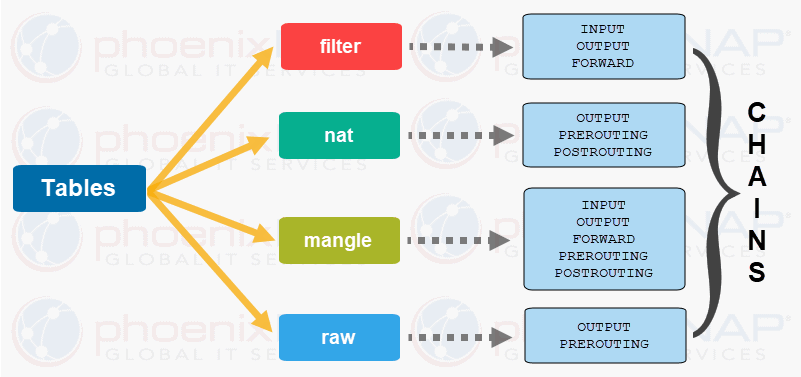
Tables allow you to do very specific things with packets. There are four tables:
- Filter table: Is the default and most widely used table. It is used to make decisions about whether a packet should be allowed to reach its destination.
- Mangle table: Allows you to alter packet headers in various ways, such as changing TTL values.
- NAT table: Allows you to route packets to different hosts on NAT (Network Address Translation) networks by changing the source and destination addresses of packets. It is often used to allow access to services that can’t be accessed directly, because they’re on a NAT network.
- RAW table: iptables is a stateful firewall, which means that packets are inspected with respect to their “state”. (For example, a packet could be part of a new connection, or it could be part of an existing connection.) The raw table allows you to work with packets before the kernel starts tracking its state. In addition, you can also exempt certain packets from the state-tracking machinery.
Chains
Each of these tables are composed of a few default chains. These chains allow you to filter packets at various points. The list of chains iptables provides are:
- PREROUTING chain: Rules in this chain apply to packets as they just arrive on the network interface. This chain is present in the nat, mangle and raw tables.
- INPUT chain: Is used to control the behavior for incoming connections. For example, if a user attempts to SSH into your PC/server, iptables will attempt to match the IP address and port to a rule in the input chain. Rules in this chain apply to packets just before they’re given to a local process. This chain is present in the mangle and filter tables.
- OUTPUT chain: The rules here apply to packets just after they’ve been produced by a process. This chain is present in the raw, mangle, nat and filter tables. It is used for outgoing connections. For example, if you try to ping howtogeek.com, iptables will check its output chain to see what the rules are regarding ping and howtogeek.com before making a decision to allow or deny the connection attempt. Even though pinging an external host seems like something that would only need to traverse the output chain, keep in mind that to return the data, the input chain will be used as well. When using iptables to lock down your system, remember that a lot of protocols will require two-way communication, so both the input and output chains will need to be configured properly. SSH is a common protocol that people forget to allow on both chains.
- FORWARD chain: Is used for incoming connections that aren’t actually being delivered locally. Think of a router – data is always being sent to it but rarely actually destined for the router itself; the data is just forwarded to its target. Unless you’re doing some kind of routing, NATing, or something else on your system that requires forwarding, you won’t even use this chain. The rules here apply to any packets that are routed through the current host. This chain is only present in the mangle and filter tables.
- POSTROUTING chain: The rules in this chain apply to packets as they just leave the network interface. This chain is present in the nat and mangle tables.
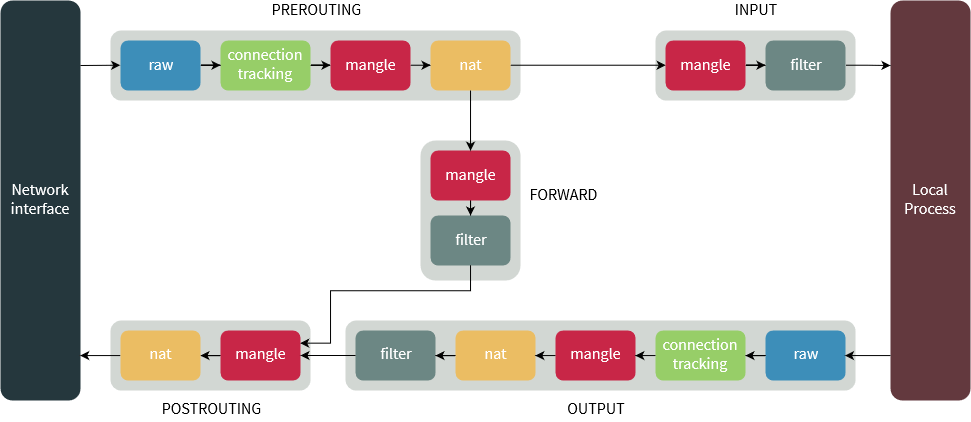
The diagram below shows the flow of packets through the chains in various tables:
Targets
Chains allow filtering traffic by adding rules to them. So for example, you could add a rule on the filter table’s INPUT chain to match traffic on port 22. But what would you do after matching them? That’s what targets are for — they decide the fate of a packet.
Some targets are terminating, which means that they decide the matched packet’s fate immediately. The packet won’t be matched against any other rules. The most commonly used terminating targets are:
- ACCEPT: Allow the connection. iptables will accept the packet.
- DROP: Drop the connection, act like it never happened. This is best if you don’t want the source to realize your system exists.
- REJECT: iptables “rejects” the packet. It sends a “connection reset” packet in case of TCP, or a “destination host unreachable” packet in case of UDP or ICMP.
There are also non-terminating targets, which keep matching other rules even if a match was found. An example of this is the built-in LOG target. When a matching packet is received, it logs about it in the kernel logs. However, iptables keeps matching it with rest of the rules too.
Show current chains
To see what your policy chains are currently configured to do with unmatched traffic, run the iptables -L command.
# iptables -L -v
----------------------------------------
Chain INPUT (policy ACCEPT 0 packets, 0 bytes)
 pkts bytes target     prot opt in     out     source               destination

Chain FORWARD (policy ACCEPT 0 packets, 0 bytes)
 pkts bytes target     prot opt in     out     source               destination

Chain OUTPUT (policy ACCEPT 0 packets, 0 bytes)
 pkts bytes target     prot opt in     out     source               destination
Unless preceded by the option -t, an iptables command concerns the filter table by default.
# iptables -t filter -L -v
# iptables -t nat -L -v
Before going in and configuring specific rules, you’ll want to decide what you want the default behavior of the three chains to be. In other words, what do you want iptables to do if the connection doesn’t match any existing rules? To see what your policy chains are currently configured to do with unmatched traffic, run the iptables -L command.
 # iptables -L | grep policy

Chain INPUT (policy ACCEPT)
Chain FORWARD (policy ACCEPT)
Chain OUTPUT (policy ACCEPT)
Policy Chain Default Behavior
Here is the command to accept connections by default:
iptables --policy INPUT ACCEPT
iptables --policy OUTPUT ACCEPT
iptables --policy FORWARD ACCEPT
If you would rather deny all connections and manually specify which only explicit ones you want to allow to connect:
iptables --policy INPUT DROP
iptables --policy OUTPUT DROP
iptables --policy FORWARD DROP
Connection-specific Responses
We can configure iptables to allow or block specific addresses, address ranges, and ports. In the following examples, we’ll set the connections to DROP, but you can switch them to ACCEPT or REJECT, depending on your needs and how you configured your policy chains.
Notes:
- iptables -A appends rules to the existing chain. iptables starts at the top of its list and goes through each rule until it finds one that it matches. If you need to insert a rule above another, you can use iptables -I [chain] [number] to specify the number it should be in the list.
- Adding rules to the INPUT chain of the filter table can be done with: iptables -t filter -A INPUT -s 59.45.175.62 -j REJECT. The -t switch specifies the table in which our rule would go into. Since the filter table is used by default, we can leave it out, which saves you some typing: iptables -A INPUT -s 59.45.175.62 -j REJECT
Inserting Rules
Connections from a single IP address
This example shows how to block all connections from the IP address 10.10.10.10.
iptables -A INPUT -s 10.10.10.10 -j DROP
Connections from a range of IP addresses
This example shows how to block all of the IP addresses in the 10.10.10.0/24 network range. You can use a netmask or standard slash notation to specify the range of IP addresses.
iptables -A INPUT -s 10.10.10.0/24 -j DROP
or
iptables -A INPUT -s 10.10.10.0/255.255.255.0 -j DROP
Connections to a specific port
This example shows how to block SSH connections from 10.10.10.10.
iptables -A INPUT -p tcp --dport ssh -s 10.10.10.10 -j DROP
You can replace “ssh” with any protocol or port number. The -p tcp part of the code tells iptables what kind of connection the protocol uses. If you were blocking a protocol that uses UDP rather than TCP, then -p udp would be necessary instead. This example shows how to block SSH connections from any IP address.
iptables -A INPUT -p tcp --dport ssh -j DROP
Deleting rules
Now, say you’ve blocked the IP range 221.194.47.0/24 by mistake. Removing it is easy: simply replace -A with -D, which deletes a rule:
iptables -D INPUT -s 221.194.47.0/24 -j REJECT
You can also delete rules through their line numbers. If you want to delete the second rule from the INPUT chain, the command would be:
iptables -D INPUT 2
When you delete a rule that isn’t the last rule, the line numbers change, so you might end up deleting the wrong rules! So, if you’re deleting a bunch of rules, you should first delete the ones with the highest line numbers. If you were deleting the 9th and 12th rules from the INPUT chain, you would run:
iptables -D INPUT 12
iptables -D INPUT 9
Sometimes, you may need to remove all rules in a particular chain. Deleting them one by one isn’t practical, so there’s the -F switch which “flushes” a chain. For example, if you want to flush the filter table’s INPUT chain, you would run:
iptables -F INPUT
Inserting and replacing rules
You can also insert rules at a given position! This is useful in a number of cases. We’ll use the previous example in the Listing rules section. While you’re seeing attacks from 59.45.175.0/24, assume that you need to whitelist 59.45.175.10. Since iptables evaluates rules in the chains one-by-one, you simply need to add a rule to “accept” traffic from this IP above the rule blocking 59.45.175.0/24. So, if you run the command:
iptables -I INPUT 1 -s 59.45.175.10 -j ACCEPT
This rule is inserted at the first line, and it makes the rule blocking 59.45.175.0/24 come to the second line. You can verify this by listing the rules:
Chain INPUT (policy ACCEPT)
num target prot opt source destination
1 ACCEPT all -- 59.45.175.10 0.0.0.0/0
2 DROP all -- 59.45.175.0/24 0.0.0.0/0
3 DROP all -- 221.192.0.0/20 0.0.0.0/0
4 DROP all -- 91.197.232.104/29 0.0.0.0/0
You can also replace rules with the -R switch. As an example, perhaps you whitelisted the wrong IP, and typed in 59.45.175.12 instead of 59.45.175.10. Since the new rule is on the first line, you can replace it with the correct rule like so:
iptables -R INPUT 1 -s 59.45.175.10 -j ACCEPT
Enable Loopback Traffic
It’s safe to allow traffic from your own system (the localhost). Append the Input chain by entering the following:
sudo iptables –A INPUT –i lo –j ACCEPT
This command configures the firewall to accept traffic for the localhost (lo) interface (-i). Now anything originating from your system will pass through your firewall. You need to set this rule to allow applications to talk to the localhost interface.
Custom chains
You may need to do some complex processing on the same packet over and over. For example, say you want to allow SSH access just for a couple of IP ranges:
iptables -A INPUT -p tcp -m tcp --dport 22 -s 18.130.0.0/16 -j ACCEPT
iptables -A INPUT -p tcp -m tcp --dport 22 -s 18.11.0.0/16 -j ACCEPT
iptables -A INPUT -p tcp -m tcp --dport 22 -j DROP
This is inefficient. A better way to organize these rules would be to use custom chains. First, you need to make a custom chain. We’ll name ours ssh-rules:
iptables -N ssh-rules
Then, you can add the rules for the IPs in the new chain. Of course, we aren’t limited to matching IPs — you can do just about anything here. However, since custom chains don’t have a default policy, make sure you end up doing something to the packet. Here, we’ve added a last line that drops everything else. There’s also the RETURN target, which allows you to return to the parent chain and match the other rules there — it’s similar to a non-terminating target.
iptables -A ssh-rules -s 18.130.0.0/16 -j ACCEPT
iptables -A ssh-rules -s 18.11.0.0/16 -j ACCEPT
iptables -A ssh-rules -j DROP
Now, you should put a rule in the INPUT chain that refers to it:
iptables -A INPUT -p tcp -m tcp --dport 22 -j ssh-rules
Using a custom chain carries many advantages. For example, you can entirely manage this chain through a script, and you don’t have to worry about interfering with the rest of the chain.
If you want to delete this chain, you should first delete any rules that reference to it. Then, you can remove the chain with:
iptables -X ssh-rules
Connection States
A lot of protocols are going to require two-way communication. For example, if you want to allow SSH connections to your system, the input and output chains are going to need a rule added to them. But, what if you only want SSH coming into your system to be allowed? Won’t adding a rule to the output chain also allow outgoing SSH attempts?
That’s where connection states come in, which give you the capability you’d need to allow two way communication but only allow one way connections to be established. Take a look at this example, where SSH connections FROM 10.10.10.10 are permitted, but SSH connections TO 10.10.10.10 are not. However, the system is permitted to send back information over SSH as long as the session has already been established, which makes SSH communication possible between these two hosts.
iptables -A INPUT -p tcp –dport ssh -s 10.10.10.10 -m state –state NEW,ESTABLISHED -j ACCEPT iptables -A OUTPUT -p tcp –sport 22 -d 10.10.10.10 -m state –state ESTABLISHED -j ACCEPT
Saving Changes
The changes that you make to your iptables rules will be scrapped the next time that the iptables service gets restarted unless you execute a command to save the changes. This command can differ depending on your distribution:
sudo /sbin/iptables-save
Reset iptables firewall
To clear all the currently configured rules, you can issue the flush command (iptables -F).
iptables -P INPUT ACCEPT
iptables -P FORWARD ACCEPT
iptables -P OUTPUT ACCEPT
iptables -t nat -F
iptables -t mangle -F
iptables -F
iptables -X
Installation
Iptables is a command-line firewall utility that uses policy chains to allow or block traffic. When a connection tries to establish itself on your system, iptables looks for a rule in its list to match it to. If it doesn’t find one, it resorts to the default action. iptables almost always comes pre-installed on any Linux distribution. To update/install it, just retrieve the iptables package:
sudo apt-get install iptables
If you want to keep iptables firewall rules when you reboot the system, then install the persistent package:
sudo apt-get install iptables-persistent